USA · MULTI-LNB ALIGNMENT
DirecTV WorldDirect dish alignment
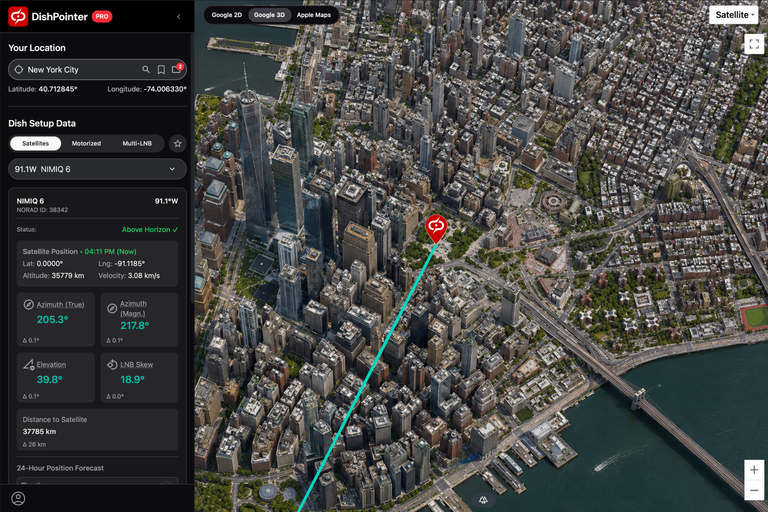
Align your DIRECTV WorldDirect dish using 95°W as the center LNB and alignment target, with the second feed at 101°W. Enter your ZIP Code or address to find the dish direction, elevation and tilt.
Feed arrangement: 95W (center), 101W
Your location
Latitude: °
Longitude: °
Satellite Data
Dish Setup Data
...Azimuth (true)
Azimuth angle relative to true north
°
Azimuth (mag.)
Azimuth angle relative to magnetic north. Use this with a compass.
°
Elevation
Angle between the dish and the horizontal plane. Set this on the dish mount.
°
LNB Skew
Rotation direction when standing behind the dish. Zero when LNB is vertical.
°
PERFECT RECEPTION
Check the sight line to every feed
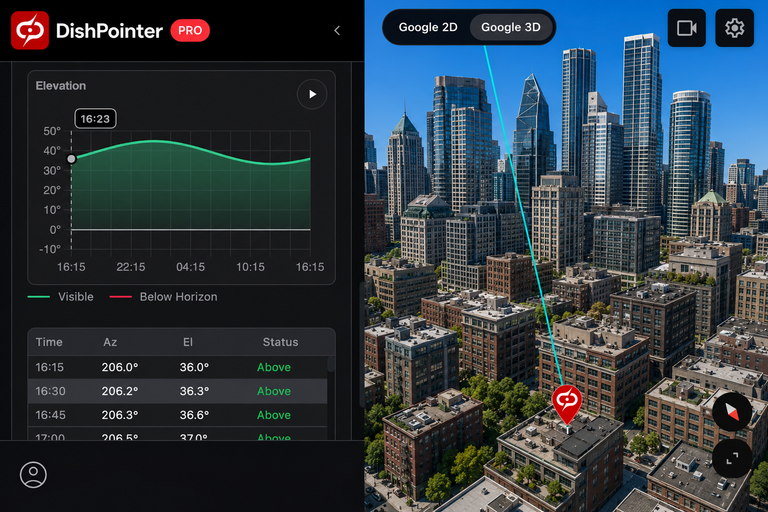
For trouble-free reception, each feed must have a clear line of sight. Check for trees, buildings and other obstructions in the satellite direction beforehand on the map, or on site with the official DishPointer Pro 2 app.



Your DirecTV WorldDirect configuration
WorldDirect uses a 95°W center target. The SL3 and SL5 presets use 101°W instead, so select the preset that matches your actual feed arrangement.
- Service status
- Multi-LNB alignment
- Alignment target
- 95°W
- Feed positions
- 95W (center), 101W
- Dish skew scale
- Neutral: 90°. Clockwise rotation decreases the scale reading, viewed from behind the dish.
Quick setup guide
- Aim the dish along the alignment line shown on the map.
- Set elevation and dish skew on your dish scale to the values shown by DishPointer.
- Check for obstructions with the DishPointer Pro 2 app. Each active feed must have a clear line of sight.
- Peak the signal for the centered satellite, then verify or fine-tune the others.